I Gave My 2015 MacBook Pro a Second Life with Linux
Don't throw away that old MacBook. See how I used Claude as an AI copilot to diagnose hardware issues and install Pop!_OS for a perfect second life.
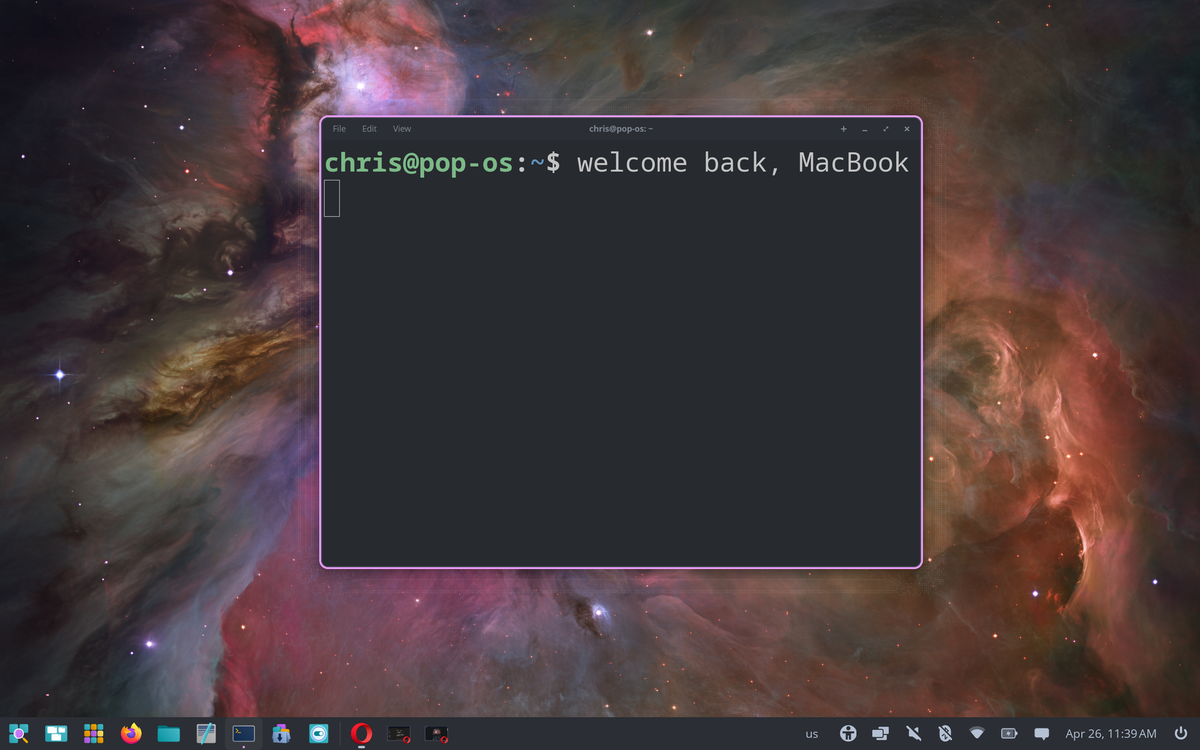
My 2015 MacBook Pro had been sitting in a drawer for who knows how long. You know the feeling — it still works, you can't bring yourself to throw it away, but it's too old to keep up with your daily workflow. For me, it wasn't even fully working. The keyboard and trackpad were acting up, it was rebooting on its own, and macOS Monterey was as far as it could go software-update wise.
Instead of letting it collect more dust, I decided to give it a full second life — wipe it, install Linux, and document the whole thing. The twist? I used Claude as my AI copilot for every single step, from diagnosing the hardware to picking a distro to walking through the install. And honestly? It was one of the most fun tech projects I've done in a while.
Here's how it went.
First Things First: What Was Actually Wrong With It
Before doing anything, I wanted to know what I was working with. The machine was rebooting randomly, the built-in keyboard was hit or miss, and the trackpad would click but the cursor wouldn't move. Not exactly inspiring confidence.
Claude walked me through running Apple Diagnostics — hold D on startup with a wired USB keyboard (important: Bluetooth won't work at that stage since drivers haven't loaded yet). The result? No issues found. Reference code ADP000. Clean bill of health on the core hardware.
So the guts were fine. The culprit, to me, is the battery.
Battery Health Woes
A quick check in System Report showed "Service Recommended" with only 541 cycle counts out of a rated 1000. That sounds like it should be fine, but I recall having battery issues before I retired it in 2021 so I am sure that sitting in the drawer for years didn't help.
But here's the really interesting part, and where Claude things the issue lies: all three of my symptoms — the random reboots, the unresponsive keyboard, and the trackpad that clicked but wouldn't track — were all the same root cause. The battery sits directly underneath the trackpad on the 2015 13" model. When it swells even slightly, it pushes up against the trackpad from below, restricts cursor movement, puts pressure on the ribbon cable, and causes intermittent input failures. One problem, three symptoms.
The fix? A $74.99 iFixit A1582 battery kit. That's it. (Battery replacement is still pending — I'll cover that in Part 2.)
Picking a Linux Distro
With the hardware diagnosed, it was time to pick an OS. I asked Claude to break down the options for my specific setup — 13-inch Early 2015, Intel Core i5, 8GB RAM, 128GB SSD, Intel Iris integrated graphics.
The integrated graphics is actually good news for Linux. No discrete GPU means no dual-driver headaches, which is a common Linux-on-Mac pain point.
Claude's recommendation came down to two options:
- Ubuntu 24.04 LTS — safest choice, largest community, best Broadcom Wi-Fi support
- Pop!_OS — built by System76 specifically for Linux laptops, snappier feel on modest hardware, still Ubuntu-based under the hood
I went with Pop!_OS and I'm glad I did. It felt purpose-built for exactly this use case. The alternative was installing Proxmox but with the non-upgradable 8GB of ram and small SSD, installing an OS that still let me use the laptop seemed like a better move.
The Install
The process was straightforward once I knew the steps:
- Download Pop!_OS from pop.system76.com and flash it to a USB drive
- Shut down the Mac completely
- Power on and immediately hold the Option (⌥) key
- Select the orange EFI Boot option from the boot picker
- Choose "Try or Install Pop!_OS"
One thing worth doing before committing to the install: boot into the live environment first. This lets you test Wi-Fi, trackpad, keyboard, and display without touching your SSD. Think of it as a free test drive.
Speaking of Wi-Fi — Broadcom chips in Macs are notorious for being difficult on Linux. Drivers often need to be manually installed, which is annoying when you need Wi-Fi to get those drivers. On my machine? It just worked. Connected on first boot, no extra steps. If you're not as lucky, you'll need either a USB ethernet adapter or USB tethering from your phone to get online and grab the drivers.
The actual install took about 15 minutes. Full wipe, clean install, automatic partitioning. When it rebooted and asked me to log in, everything worked — display, keyboard, trackpad, Wi-Fi. All of it.
Setting It Up
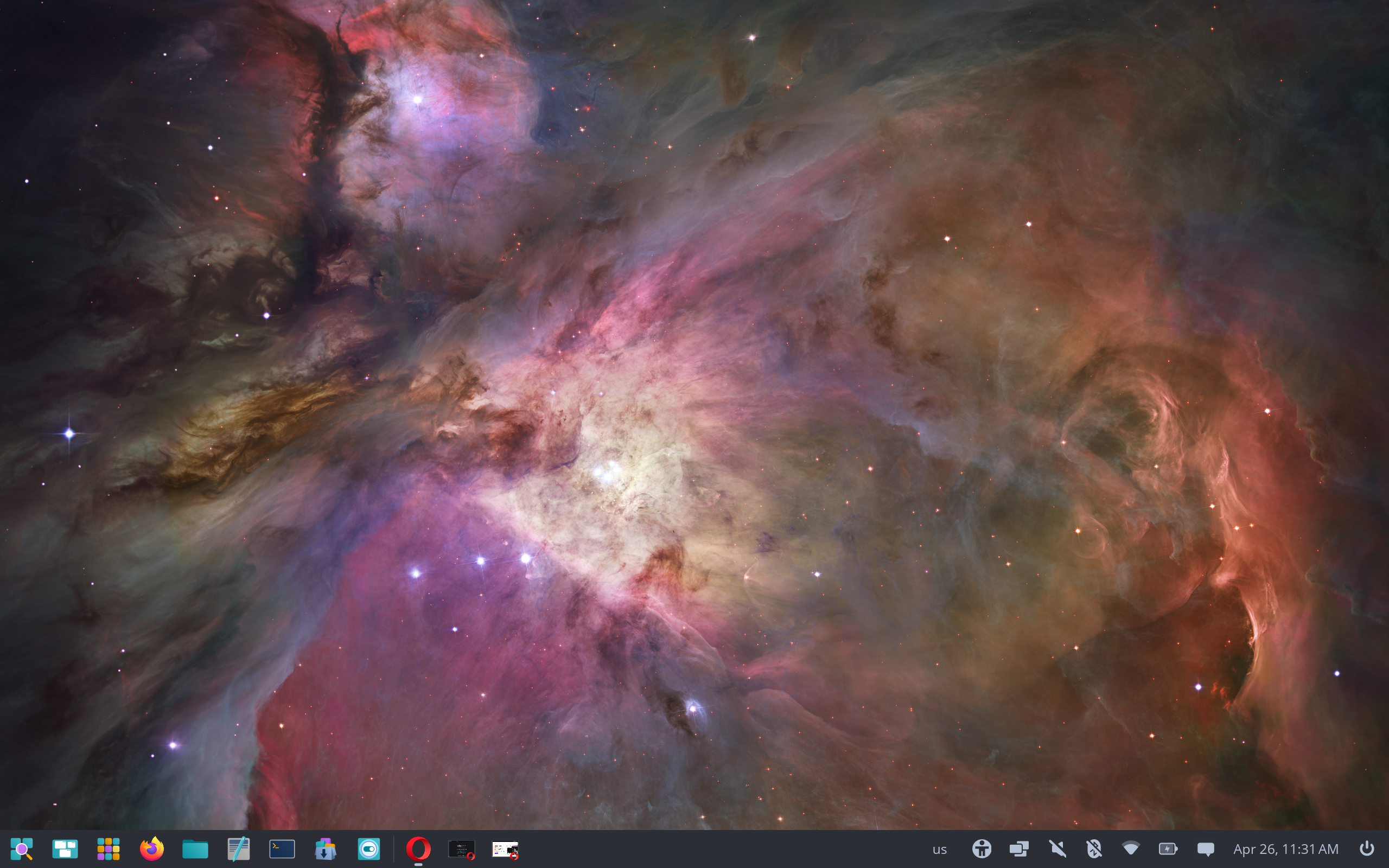
Once I was in, first priority was getting my passwords accessible. 1Password has an official Linux app and the cleanest install method is via their apt repository — that way it updates automatically with your system. Claude provided the following script to run in the terminal.
curl -sS https://downloads.1password.com/linux/keys/1password.asc | sudo gpg --dearmor --output /usr/share/keyrings/1password-archive-keyring.gpg

echo 'deb [arch=amd64 signed-by=/usr/share/keyrings/1password-archive-keyring.gpg] https://downloads.1password.com/linux/debian/amd64 stable main' | sudo tee /etc/apt/sources.list.d/1password.list

sudo apt update && sudo apt install 1password
From there I installed a few other essentials. The main one I was interested in was Thunderbird, which is an email client. The rest are packages that Claude suggested as a "first time install" step. You don't have to download them if you don't want to but as someone who was starting off fresh, I went for it and asked Claude to explain what they were and how I would use them.
sudo apt install thunderbird git curl wget unzip btop neofetch
I also grabbed Opera and Google Antigravity (Google's new AI-powered IDE — more on that in a future post) as .deb downloads.
The AI Copilot Angle
Here's what I really want to highlight because I think it's genuinely underrated: using AI as a real-time guide through a project like this changes the experience completely.
I'm not a Linux expert. I didn't know offhand that Bluetooth keyboards don't work during Apple Diagnostics. I didn't know that a 541 cycle battery with service recommended on a 2015 Mac almost certainly means storage degradation, not wear. I didn't know that a swollen battery could cause trackpad and keyboard issues simultaneously through the same ribbon cable.
Claude helped me learn all of that. And it didn't just dump information — it walked me through each step in sequence, explained the why behind each decision, flagged things I hadn't thought of (like deauthorizing my Apple ID before wiping, or the serial number being visible in my diagnostic photos), and kept the momentum going when I wasn't sure what to do next.
This is a project that 10 years ago would have required hours of forum diving, multiple Reddit threads, and a lot of trial and error. With an AI copilot it was a single focused session that was actually enjoyable. That said, it is important to exercise caution on projects like this. I didn't do this on my main machine and I don't plan on doing any critical workloads on this machine. If something breaks, I'm okay wiping it and starting fresh. Just something to keep in mind!
If you've got an old Mac or PC sitting in a drawer, I genuinely encourage you to try this. The hardware is probably fine. The battery might need replacing. And Linux has come a long way — Pop!_OS on this machine feels completely usable for everyday web browsing, which is exactly what I wanted.
And if I get bored, I'm curious how ChromeOS Flex will work on this thing 😄